


Last updated: 17 October 2026
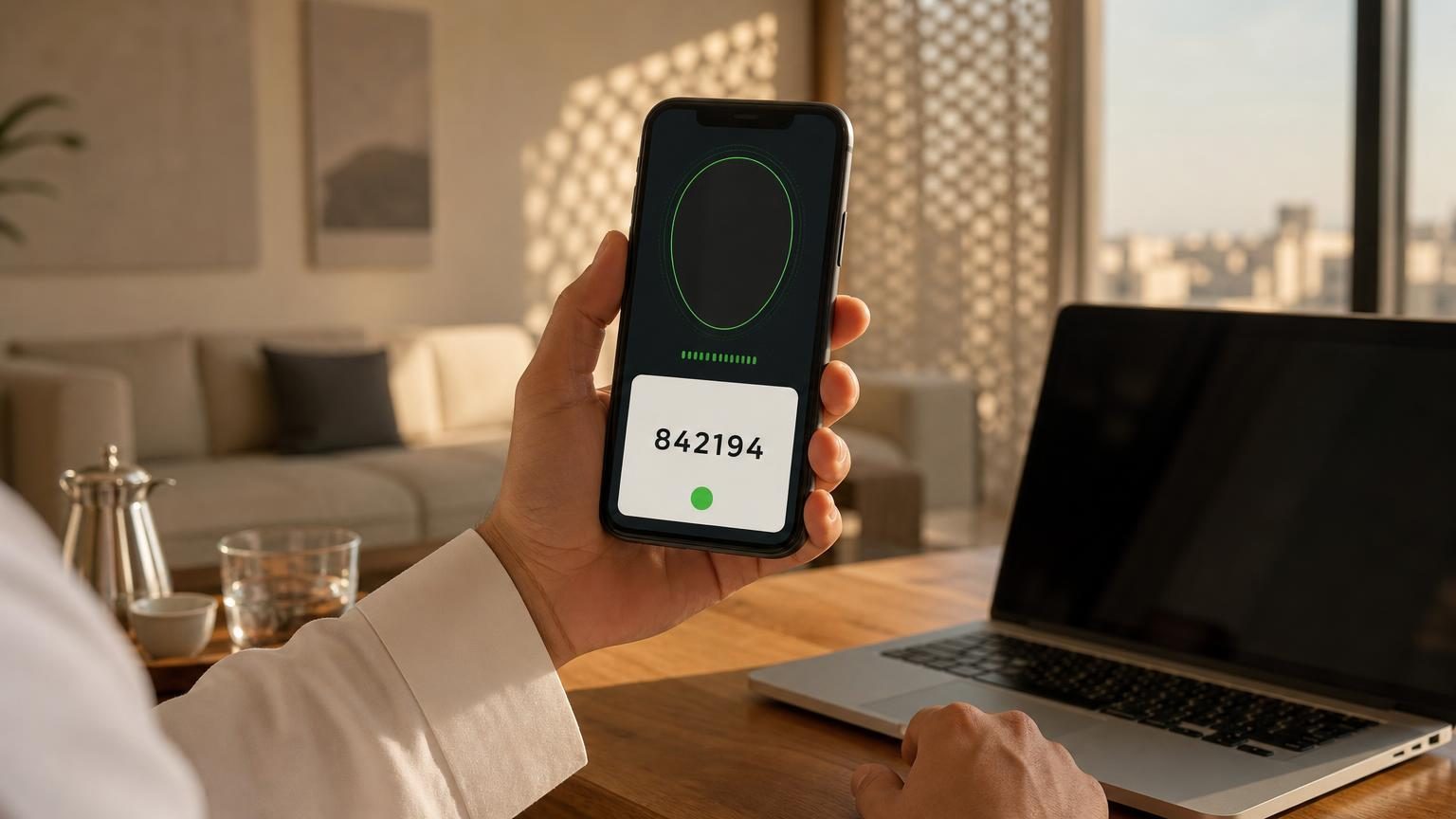
You do not need a separate Nafath registration: Nafath uses your Absher account. To start using the Nafath app, download it, enter your National ID or Iqama number and your Absher password, type the code sent to your mobile, create a 6-digit PIN and complete the face scan. After that, you approve log-ins to Absher, Qiwa and other platforms with one tap in the app.
This guide covers Nafath registration, activating the app, logging in, resetting your password or PIN, changing your mobile number, and fixing the face scan and code errors people hit most often.
Nafath at a Glance
| Question | Answer |
|---|---|
| What it is | The National Single Sign-On (NAFATH), Saudi Arabia’s digital identity system |
| Run by | Saudi Data and AI Authority (SDAIA) |
| Website | iam.gov.sa, plus the Nafath app on App Store, Google Play and AppGallery |
| Account | Your Absher account: National ID or Iqama number and Absher password |
| App PIN | 6 digits, created when you activate the app |
| Cost | Free, available 24/7 |
| Support | 8001221111, support@nic.gov.sa, or @NIC_Care on X |
Get Iqama, visa and job updates on WhatsApp
Follow the Saudi Life Guide channel to get new rules, fees and news as soon as we publish them.
Follow on WhatsAppHow to Register for Nafath
Nafath has no sign-up form of its own. According to the official Nafath FAQ, you can start using it straight away with your ID number and your Absher password. That is why the New Account button on the Nafath login page sends you to Absher.
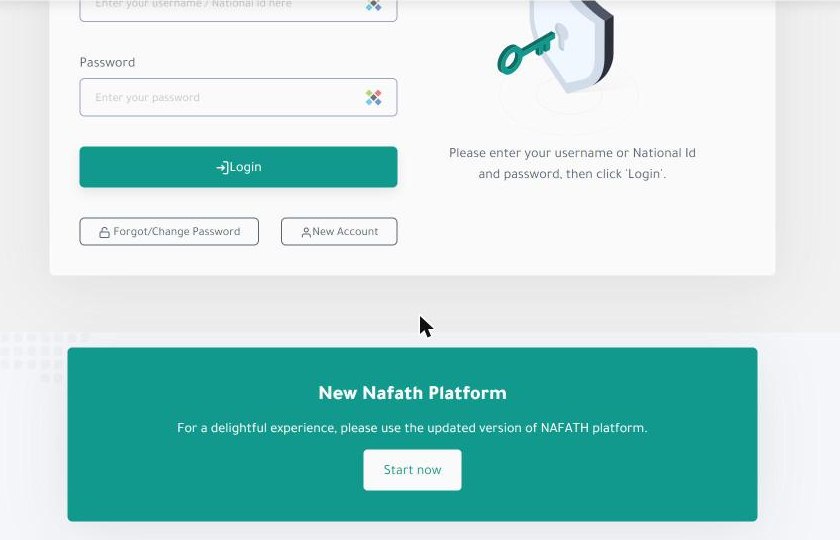
- Create an Absher account with your Iqama or National ID, your Saudi mobile number and an e-mail address. Our Absher registration guide walks through each screen.
- Activate the Absher account at a bank branch, a self-service kiosk or in person, as the Absher guide explains.
- Make sure the mobile number on your Absher account is yours and working: every Nafath code goes to that number. If it is not linked yet, see how to link a mobile number with your Iqama.
- Download the Nafath app and activate it (steps below).
New arrivals cannot use Nafath until their Iqama is issued and their Absher account is active. Our complete Iqama guide explains that first step.
How to Activate the Nafath App
Download Nafath from the App Store or Google Play (also on Huawei AppGallery). The official download links are also on the Nafath login page. Then:
- Open the app and enter your ID number (National ID or Iqama) and your Absher password.
- Enter the one-time code (OTP) sent by SMS to the mobile number registered in Absher.
- Create and confirm your 6-digit personal PIN. You will use it to approve every request.
- Read the instructions and complete the face scan (biometric verification).
- A confirmation message appears. The app is now active on this phone.
Nafath warns users never to activate the app on someone else’s phone. If you change phones, install the app on the new phone and activate it again with the same steps.
How to Log In With Nafath
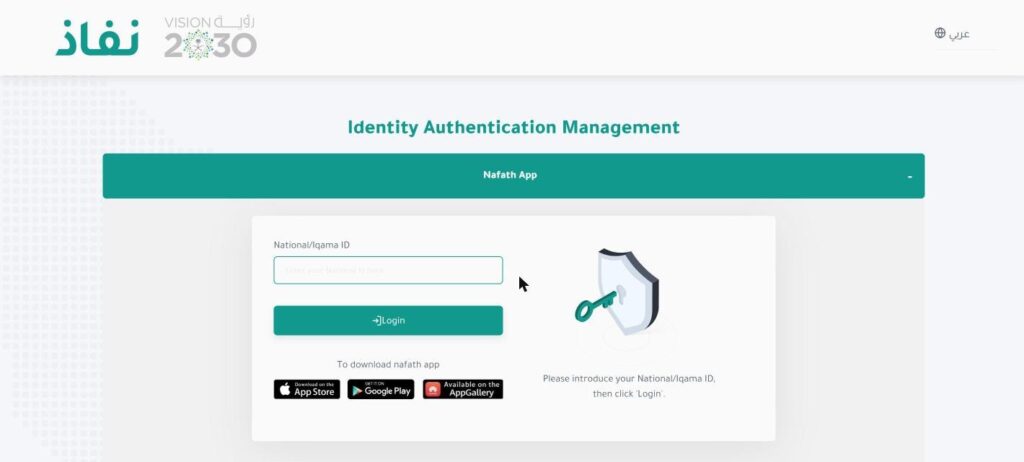
When a website or app offers Login via Nafath, you have two options.
With the Nafath app (most common):
- Choose Sign in via Nafath App on the service you want to use.
- Enter your ID number on the Nafath page.
- Open the Nafath app and tap Accept on the new request.
- Choose the number that matches the one shown on the service page.
- Enter your 6-digit PIN. A success message appears and you return to the service.
With username and password: choose Sign in via the National Single Sign-On Platform, enter your ID number and Absher password on the Nafath login page, then type the SMS code sent to your registered mobile.
Platforms that use Nafath include Absher, Qiwa for contracts and job transfers, SPL national address, the MOLIM credit report and digital SIM activation with telecom companies.
Nafath Password Reset and Forgotten PIN
| You forgot | What to do |
|---|---|
| Your password | Reset it through Absher. Your Nafath password is your Absher password, so use the Absher password reset steps. The Forgot/Change Password link on the Nafath page leads to the same process. |
| Your 6-digit PIN | Log out of the Nafath app and log back in with your ID number and Absher password. The app asks you to set a new PIN. |
| Your username | You can always log in with your National ID or Iqama number instead of a username. |
How to Change Your Mobile Number in Nafath
You can update the mobile number linked to your digital identity in the app, without visiting a kiosk:
- Log out of your account in the Nafath app, then tap Settings on the home screen.
- Choose Update Mobile Number for Digital Identity.
- Enter your ID number and the new mobile number.
- Enter the code sent to the new number.
- Complete the face scan. A confirmation message shows the number is updated.
If codes still go to your old number, wait: Nafath says the update completes within 10 minutes. The new number must be registered to your own Iqama or ID. You can also change the number through Absher, as our Absher guide shows.
Common Nafath Problems and Fixes
| Problem | What to do |
|---|---|
| Face scan says Incorrect data was entered | Clean the front camera, hold the phone at face level with your whole face in the frame, use good light and keep other people and objects out of the frame. |
| No OTP code received | The code goes to the mobile number registered in Absher. Tap Resend Code. If it still does not arrive, check the number in Absher or contact Nafath support. |
| Request does not appear in the app | Open the Nafath app yourself and check your internet connection. If the request is still missing, start the log-in again on the service page. |
| New phone or reinstalled app | Activate the app again with your ID number, Absher password, code, PIN and face scan. |
| A request you did not start | Do not accept it. Read every request before you tap Accept, and report it to Nafath support if it keeps happening. |
| Digital ID suspended | Reactivate it in the app: Settings, Activate the Digital Identity, then ID number, code, security question and face scan. |
Nafath also lets you temporarily suspend your digital identity from the app settings, for example if you lose your phone. A suspension blocks online services only: your physical Iqama or ID card still works.
Keep Your Nafath Account Safe
- Use only the official Nafath app and websites ending in gov.sa.
- Never share your Absher password, OTP codes or PIN with anyone who calls or messages you, even if they claim to be a bank, a delivery company or a government office.
- Check the description of every request before you accept it. If you did not start it, reject it.
- Do not let anyone else activate Nafath on your phone, or activate yours on theirs.
Nafath warns users not to respond to calls or messages asking for their account details. Check which SIMs are registered in your name with our SIM check guide.
Nafath Customer Care
Nafath support (National Information Center) answers on 8001221111, by e-mail at support@nic.gov.sa and on X at @NIC_Care. The official guide says reports are resolved within 5 working days. For Absher account problems, contact Absher instead (see our Absher guide).
Frequently Asked Questions
How do I register for Nafath?
There is no separate Nafath registration. Nafath uses your Absher account, so you log in with your National ID or Iqama number and your Absher password. If you do not have Absher yet, create and activate an Absher account first, then download the Nafath app and activate it with the same details.
How do I reset my Nafath password?
Your Nafath password is your Absher password, so you reset it through Absher, using the forgot password option on the Absher login page or in the Absher app. The new password works on Nafath straight away. The Forgot/Change Password link on the Nafath login page takes you to the same process.
I forgot my Nafath PIN. What should I do?
The 6-digit personal PIN is the code you created when you activated the Nafath app. To set a new one, log out of the Nafath app and log back in with your ID number and Absher password. The app then asks you to create and confirm a new PIN.
How do I change my mobile number in Nafath?
Log out of the Nafath app, open Settings and choose the mobile number update service. Enter your ID number and the new number, type the code sent to the new number and complete the face scan. Nafath says the change takes effect within about 10 minutes.
Why does Nafath say Incorrect data was entered during the face scan?
The app could not match your face. Clean the front camera, hold the phone at face level so your whole face fits inside the frame, use good lighting and make sure no other person or object appears in the frame. Then follow the on-screen instructions and try again.
Is Nafath free and who runs it?
Yes, Nafath is free. It is the National Single Sign-On system, developed and run by the Saudi Data and AI Authority (SDAIA). Government and private platforms such as Absher, Qiwa and SPL use it to confirm your identity, and the support line is 8001221111.
Sources: National Single Sign-On (NAFATH), iam.gov.sa login page and FAQ and service pages (Saudi Data and AI Authority), read 17 October 2026.